Showing posts with label Free Browsing. Show all posts

Giveaway of The Day: Browse Free on PC Using Proxomitron

If you are a free browsing person, I'm sure you will love this post. I am well aware that Privoxy has not been a good boy of late. You discover that you get this funny URL - xxx.yyy.zzz at times when you visit some websites. It is still fast but it's behavior can be annoying and frustrating.

This is why I am giving out another free browsing software. It works on MTN
It's been around for a while and I'm sure many people have been enjoying it. The set back of this software, however, is that it does not browse HTTPS sites. However, there is a work around for that. Although, it does not work all the time. It works for my blogger account though.

How to Create Prov File for Nokia S40(Java) Phones Online

In order to browse free on Nokia S40 or Java phones you need to create and send your own .prov file to them even if you are using the default settings. If you don't do this, your free browsing config will not work.
To create .prov file first go to this address
  • Select Access >> Click to Proceed
  • Enter your Settings

New MTN Free Browsing Tweaks (Opera Mini): October 21 Update

Like our Fan Page on Facebook 1st Before you make use of these tweaks
Free Browsing tweak October 21-TechBase

For Opera Mini 6.1
Proxy Address: 10.199.212.2 | Port: 8080 (MTN Default)
Filter: *(mini5-1.opera-mini.net mini5.opera-mini.net\http: 141.0.11.253 141.0.11.253)
Host: 41.220.77.210

Free Browsing Tweak (mobile) Extravaganza! - MTN, Etisalat, Airtel


ALERT! - Lots of FREEBIES coming on TechBase
HOLD ON!!!

Subscribe or join our  FanPage First

MTN TWEAKS

Opera Mini 5.x, 6.0:
Proxy Address: 10.199.212.2 | Port: 8080
Primary/Custom Server: http://82.145.210.160
Socket: socket://82.145.210.160:1080
Host: 41.220.77.210

Etisalat Free Browsing Tweak: October 10, 2011

You are an Etisalat line user and you want to browse free. If that's what you really want then this post is for ya!
Below is a working tweak on Opera Mini.
Check our my previous post to download an Opera Mini pack if you don't have them.

free code

IP Address or Proxy Address: 82.145.210.80
Port: 80
Custom Server or Primary Server: http://209.85.169.104:80
Host: www.google.com.ng


Read this post to learn how to create prov file online


Subscribe via RSS or Subscribe by Email.
Like TechBase on Facebook

MTN Free Browsing Update: October 6th 2011

Below is a working tweak to browse free on the MTN network using Opera Mini 5 to 6 but not 6.1

IP Address: MTN Default Settings: 10.199.212.2 with port 8080
Custom/Primary Server: http://v13-15.opera-mini.net
Host: 41.220.77.210


You can download an Opera Mini handler pack here: CLICK


Etisalat Free Browsing Tweak Update: Sept. 24, 2011

You want to browse free huh? You're probably like me. You like free things. lol.
I did not give you this tweak. lol. Just enjoy... while it lasts.

I will try to update these tweaks so you can subscribe to my blog by e-mail to get all the updates. Do this by entering your email address on the right side of this page.

Etisalat Tweaks
Opera 5, 6:
IP: 82.145.210.160  Port: 80

Free Browsing Twaek Update: September 24/2011

Don't say I gave you this tweaks lol. I will try top update these tweaks regularly because I feel that some people should enjoy browsing like me. I do not pay for browsing. I have but only a negligible amount of times.

Anyways, you should subscribe to this blog to get regular updates or just post a comment requesting for a free browsing tweak update.

How To configure Your Browser for Free Browsing

In configuring your PC for free browsing you have two options and the options are either to enter your settings in the system's main connection manager or to configure you browser alone.

Either of the two options has its benefits. The benefit of configuring the overall system settings is that you might be able to have your windows update functioning, your antivirus updating and you can have almost all of the internet enabled applications on your system working but then you will definitely lose bandwidth generally especially if your connection is GPRS or EDGE. I connect using 3G so I use this option and most of the time I do not experience any form of lag in the connection. But if you are connecting using EDGE you might want to configure your browser only.

Configuring Your Browser
Not all browsers can be configured on their own. Below are some of the browsers you can't configure:
  • Google Chrome
  • Internet Explorer
  • Safari
Below are some of the browsers you can configure
  • Mozilla Firefox
  • Opera
  • Flock
In configuring your browser you have to know the Proxy Address and Port numbers that your free browsing software uses. For example, the popular Your-freedom uses the Proxy Address is 127.0.0.1 and port 8080 by default.
Most of the time the proxy is the localhost - 127.0.0.1 so the most important thing is knowing the port number.

How to configure Mozilla Firefox
  • Click on Tools on the Menu bar and go to Options
  • Then Click the Advanced tab
Browser configuration

  • Next click Network tab under Advanced tab
  • Next click settings under the connection tab


Browser configuration techbase


  • You can now enter the desired settings
Some softwares can grant you access to all protocols(HTTP, SSL, FTP, etc) with a single port number but for some other softwares you might need to enter a different setting for each protocol.
Even if you do not know which port to enter for each protocol if you know the default address(HTTP) it might just work for the others so you should just enter it then tick "Use this proxy for all protocols"

If the config for SSL is different you should give it its own seperate port number but most of the time this is what works:
HTTP Proxy: 127.0.0.1 (or localhost) Port: 8080
Enable "Use this proxy for all protocols"

How to configure Opera
To configure Opera,
  • Click Menu >> Settings >> Preferences

Browser configuration techbase

  • On the preferences window, go to Advanced then Click Network
Browser configuration techbase

  • Next, click the Proxy Servers button
Browser configuration techbase


Enter the desired proxy address details
You will see all the available protocols but note that Opera does not use the term SSL in its proxy server identification. Instead it uses HTTPS
You should now enter your provided SSL Address and Port number here if you need to

Configuring the whole system for Free Browsing
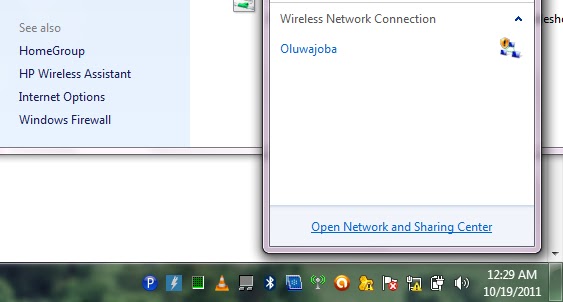
In order to do this click your network icon and then click Open Network and Sharing Center (Vista and & Users)

Browser configuration

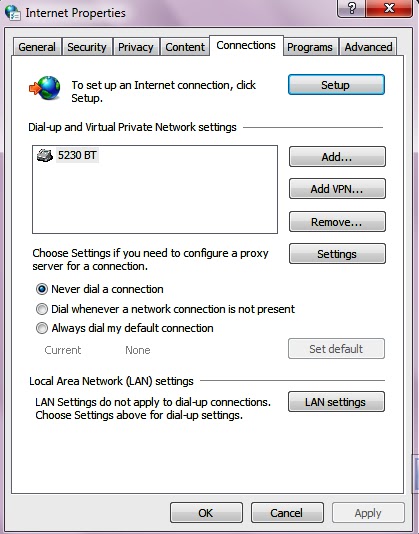
At the buttom left of the scree click internet options and then go to the connections tab

Browser configuration

You might see several connection profiles if you connect using more than one device such as MTN 3G, GLO 3G, etc.
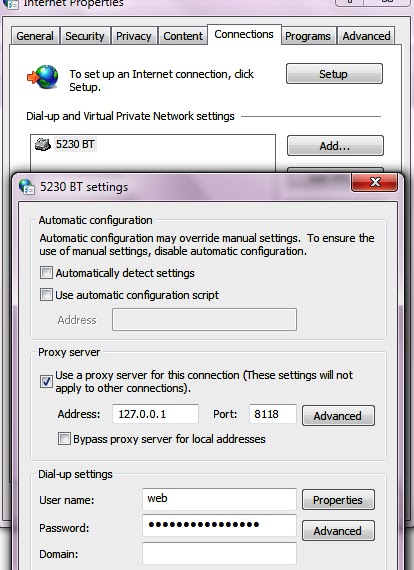
Determine the connection you are using and double click it to open its settings interface.
Next, tick "Use proxy server for this connection"
You can now enter your Proxy address (eg 127.0.0.1) and Port (eg 8080)

Browser configuration

If you have a different port number for SSL/HTTPS you should click on the advanced button (this opens another window)
You can now enter a different port number for your HTTPS/SSL in the space labeled as Secure.

Browser configuration

With this setting, you will be able to use Chrome, Safari and Internet Explorer, Maxthon, Yahoo Messanger, etc for your free browsing configurations as well as other internet enabled applications on your PC.

Note:
If you configure your Mozilla Firefox or Opera for free browsing, you need to tick/enable "No Proxy" if you are not doing free browsing or else you browser won't connect.


Browser configuration


Subscribe via RSS or Subscribe by Email.
Like TechBase on Facebook