Without using the read more feature available in blogger your blogger home page might be too lengthy because full post articles will be displayed. Depending on your home page posts settings, it could be lengthy or way too lengthy.
Some third party blogger templates have the read more feature by default. This means that you do not need to bother yourself about the read more feature because these templates will automatically apply breaks to your posts and display only a few number of lines. Your site visitor must now click read more to read the full article; if he finds it from the home page.
Every blog or website needs good and quality SEO in order to become visible in the search engines and ultimately gain a good amount of traffic.
There are several Search Engine Optimization (SEO) techniques that can be employed in getting your blog/website good traffic from the search engines and a very imporatant one of the procedures is submitting a site map to them.
Description:
Super Clean is a free premium blogger template with 2 columns, right sidebar, gallery-styled, web 2.0 design, rounded corners, minimalist, exclusive design for Blogger, slideshow, neutral colors and posts thumbnails.
Ever wanted to troubleshoot your PC but do not even know where to begin? Have you ever tried to make use of a specific Windows system tool but do not know where to find it? Have you ever felt like being in total control over your PC and not having to run to the computer geeks in order to fine tune or modify your PC to your taste?
If you are a Windows operating system user then you will definitely come across virus infected programs from time to time. You will come across them more often if you make lots of downloads and also if you like to try out new programs(epecially the free ones).
You would also come across them if you have to crack a program using keygen or patches which are widely available on the internet.
I download programs a lot and I also like to try out and discover new and rare programs. Many times, I also have to get the crack of some program because I don't want to buy the product serial key/activation key ;-)
Nobody likes it when you insert your USB flash drive into a computer system and it catches a virus. Many people often panic when their USB flash drive catches a virus or they are always so careful how they insert their flash drives in other people's computer systems.
I'm never scared of putting my flash drive in any PC because I know how to see if my flash drive has caught a virus and I also know how to easily remove the virus.
There are different kinds of viruses. I don't know much about them but I know of the following types:
Most bloggers know about blog pinging and why it's important to do that regularly.
Why you should ping your blog. You should because pinging your blog notifies Blog Search Engines, Search Engines and blog directories that your blog has been updated. What you are doing is inviting the search engines to crawl and index your most recent update.
As a blogger, you need backlinks in order for your blog to be seen and recognized by the big G(Google).
You can build backlinks by commenting on blogs, Forums profile or buying text links.
The way I've been building my backlinks is that I make sure that whenever I search for any info and I get a relevant information on what I was looking for on blogs or forums, I make sure that I leave a comment.
The new Facebook chat bar is a good development from Facebook but it can be annoying at times.
Personally, I feel that it should have the option for collapsing it. I'm sure there are many other Facebook users out there who also feel the same way.
If you own a blog, you should ping your blog regularly to tell the Search Engines that your blog has been updated. By doing this you are inviting them to crawl your blog and update your listing in the Search Engines.
I actually ran into problems inserting Adsense code and getting it to work on my posts on Blogger. I was trying to do it the popular and common way but that did not work for me so I decided to think outside the box and I was eventually successful at getting it to work for me. Read on to see how I did it.
How to display Adsense code in your Blogger posts:
Blogger comes with a good comment box by default and it's okay but you can also get a better performance and functionality from other third party integration such as the one offered by Disqus.
Disqus offers the following features:
Realtime comment system
Comments become more like live discussions with realtime posting and updating. By offering a faster, more intuitive experience.
Everyone is aware that you can share your photos and videos on Facebook but not many people know that you can now share and listen to music on Facebook.
I'm sure you must have loved to share your favorite songs with your friends on facebook. I have always wanted to do that.
I know you must now be wondering how you have not noticed the option to upload a music file to your Facebook account. But No, you don't upload directly to Facebook.
By default, blogger templates are not optimized for good search engine results on the major search engines. In order to be relevant on the internet you need to be visible on the search engines and one important thing they look out for is your title tag.
Every blog or website needs traffic or else what is your website there for? you may write good content or make your blog look really good but you also need to make the big guns of the internet have a unique title tag to your blog.
You would normally install new fonts in Windows (Except Vista/7) by clicking on the font entry in control panel, and then selecting install new font.
With Click Font you have a better and faster way to install your fonts. The software adds an Install Font entry to the right-click menu when specific font related file extensions are selected.
The software can install True Type, Open Type and Postscript Fonts and register them correctly on the system. The particular
In configuring your PC for free browsing you have two options and the options are either to enter your settings in the system's main connection manager or to configure you browser alone.
Either of the two options has its benefits. The benefit of configuring the overall system settings is that you might be able to have your windows update functioning, your antivirus updating and you can have almost all of the internet enabled applications on your system working but then you will definitely lose bandwidth generally especially if your connection is GPRS or EDGE. I connect using 3G so I use this option and most of the time I do not experience any form of lag in the connection. But if you are connecting using EDGE you might want to configure your browser only.
Configuring Your Browser
Not all browsers can be configured on their own. Below are some of the browsers you can't configure:
Google Chrome
Internet Explorer
Safari
Below are some of the browsers you can configure
Mozilla Firefox
Opera
Flock
In configuring your browser you have to know the Proxy Address and Port numbers that your free browsing software uses. For example, the popular Your-freedom uses the Proxy Address is 127.0.0.1 and port 8080 by default.
Most of the time the proxy is the localhost - 127.0.0.1 so the most important thing is knowing the port number.
How to configure Mozilla Firefox
Click on Tools on the Menu bar and go to Options
Then Click the Advanced tab
Next click Network tab under Advanced tab
Next click settings under the connection tab
You can now enter the desired settings
Some softwares can grant you access to all protocols(HTTP, SSL, FTP, etc) with a single port number but for some other softwares you might need to enter a different setting for each protocol. Even if you do not know which port to enter for each protocol if you know the default address(HTTP) it might just work for the others so you should just enter it then tick "Use this proxy for all protocols"
If the config for SSL is different you should give it its own seperate port number but most of the time this is what works:
HTTP Proxy: 127.0.0.1 (or localhost) Port: 8080
Enable "Use this proxy for all protocols"
How to configure Opera
To configure Opera,
Click Menu >> Settings >> Preferences
On the preferences window, go to Advanced then Click Network
Next, click the Proxy Servers button
Enter the desired proxy address details
You will see all the available protocols but note that Opera does not use the term SSL in its proxy server identification. Instead it uses HTTPS
You should now enter your provided SSL Address and Port number here if you need to
Configuring the whole system for Free Browsing
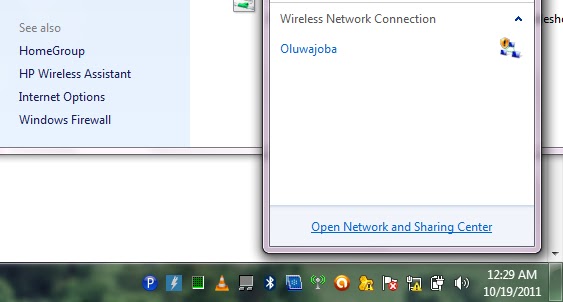
In order to do this click your network icon and then click Open Network and Sharing Center (Vista and & Users)
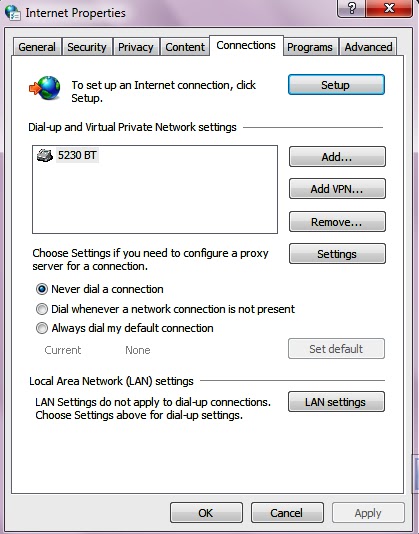
At the buttom left of the scree click internet options and then go to the connections tab
You might see several connection profiles if you connect using more than one device such as MTN 3G, GLO 3G, etc.
Determine the connection you are using and double click it to open its settings interface.
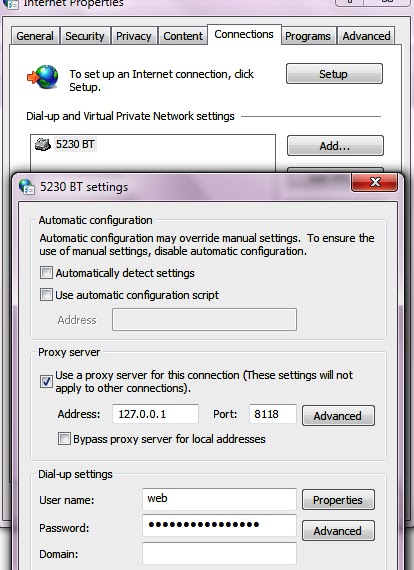
Next, tick "Use proxy server for this connection"
You can now enter your Proxy address (eg 127.0.0.1) and Port (eg 8080)
If you have a different port number for SSL/HTTPS you should click on the advanced button (this opens another window)
You can now enter a different port number for your HTTPS/SSL in the space labeled as Secure.
With this setting, you will be able to use Chrome, Safari and Internet Explorer, Maxthon, Yahoo Messanger, etc for your free browsing configurations as well as other internet enabled applications on your PC.
Note: If you configure your Mozilla Firefox or Opera for free browsing, you need to tick/enable "No Proxy" if you are not doing free browsing or else you browser won't connect.
Hey there!
Here are tips and tricks that can help you in getting the most out of your Nokia 5800 Smart Phone.
This tips are also generally useful for the Nokia Series 60 Version 5 Symbian OS Phones such as 5800, 5230, etc
1. To bring out the Shortcuts on your Screen/Desktop-> Settings/Personal/Home Screen/Home Screen theme and select Shortcut bar, you can then select which shortcut to display if goto "Shortcuts". This will also bring out the "Track" playing being displayed when you open the Music Player.
2. Tap the Clock to bring out the Clock menu and make your alarm, alarm repeat is now built-in.
3. Tap the "General" or Date (the set Profile besides the clock) and the Profile selection menu pops out, almost similar to pressing the "Power" button in all S60, but here the Remove memory is not shown, but "Calendar" shortcut is included and the other profiles as well.
4. If you are on the Numeric Keypad, pressing the [#] key alternately will toggle the General and Silent Profiles, same as before, which means long press on zero [0] will bring out bookmarks for the Web.
5. Tapping on the displayed To do or Calendar entry will bring you immediately to that particular item.
6. Tapping the Active Icon on the Top Left (near the battery indicator) will give you shortcuts for any of the active icons.
7. Long press on the Green Call Button will still activate the Voice Command Prompt
8. Long press on the center button is similar to the Long press on the "Menu" key (the yin-yang key on most S60) which will bring out the menu for all the active applications.
9. Go to Applications/File Manager and setup "Backup" for automated backup schedule of your phone data.
10. How to update your Nokia 5800 firmware using your phone.
Presss *#0000# to display phone factory information and firmware
Now press options and select check for updates
The newest update is sent to your phone from nokia
Download and install updates.
This is done using GPRS or WIFI Connectivity.
General Tips:
1. Use Dialer and press # for about 2 seconds will switch the profile between Silent and General; press and hold 0 will open the web browser; press and hold 1 will open the voice mailbox
2. There is a shortcut key for Music, Gallery, Share, Video, Web shortcut at the top right corner just below the front camera
3. Press and hold the Green caller button when standby mode will activate the voice command. You could call the name from the contact or application name.
4. Organize your sms by grouping them like outlook by Messaging -> Option -> Setting -> Text message -> Other -> Show messages in groups -> Yes
5. Notification light will blink if there is unread sms/missed call. It could be turned off at Settings -> Notification light -> Off
6. If the touch input is not accurate, you could calibrate your screen at Touch Input-> Touch Screen Calibration -> ( Tap around the 4 dots at the corner)
7. Turning control functions:
a. Rotate your screen horizontal or vertical
b. Silence your phone for incoming call by rotate your phone with screen facing down.
c. Snooze the alarm by rotating phone screen facing down
8. Theme effect will give 3D and transition effect if on but will slow down your tube considerably. Settings -> Personal -> Themes -> General -> Themes effects -> On/Off
9. Shortcut to exit application : Press and hold the middle white button then press and hold the program that you wish to quit, an open/exit option will pop out (useful for those haven’t install handy taskman yet)
10. When using handwriting input, slide from left to right is Spacebar, right to left is Backspace
11. Organize your menu by Menu -> option -> organize. You could drag and drop the location of the application you wish to relocate.
Battery saving Tips:
1. Always turn off wireless scanning, Bluetooth when not in use
2. For those not using 3G, choose your network mode to “GSM” instead of “Dual mode” which will consume more battery. Settings -> Connectivity -> Network mode -> GSM
3. Less Display Light
a. Setting -> Phone -> Display -> light sensor (move the slider to the left)
b. Setting -> Phone -> Display -> Light Time-Out (lesser time to save battery but annoying if too short while you are playing games)
4. Always terminate the application properly that is not using by using Option ->Exit. It might be running background and consuming battery which you don’t know.
Memory Saving Tips:
1. Restart your phone if the memory less than 30MB, you could either soft reset (User a dialer and dial 5 * * then call) or hard reset by pressing the power button
2. Use Handy Taskman to close all application regularly or kill application that is not in use.
Camera & Picture tips:
1. Some noise could be reduced if set the ISO sensitivity to low instead of auto.
2. When viewing pictures, you could use your stylus to view for previous (slide left) or next (slide right) picture like iphone feature.
Video Conversion Tips: For converting video that is high quality to play at 5800, should use the mp4 format as below (All is 16:9 widescreen):
a) Xvid @ 678kbps resolution 480×272
b) Xvid @794kpbs resolution 640×352
c) H.264 @ 512kbps resolution 400×224
d) H.264 @ 550kbps resolution 400×224 (Recommended)
Music tips:
1. If you can’t find your songs after transferring from your pc to memory card, go to music player -> Option -> Refresh library
Application Tips:
1. Always install your phone theme on the memory cards. This is because if some theme does not work (Christmas tree) then you need to flash your phone.
2. Uninstall your application in proper way. Use Menu -> Setting -> Application mgr. -> Installed apps -> Choose application then option n uninstall