Showing posts with label How-To. Show all posts

How to Add Your Blog Site Map To Bing/Yahoo

search engine optimization
Every blog or website needs good and quality SEO in order to become visible in the search engines and ultimately gain a good amount of traffic.

There are several Search Engine Optimization (SEO) techniques that can be employed in getting your blog/website good traffic from the search engines and a very imporatant one of the procedures is submitting a site map to them.

Take Control of your Computer with the God Mode Feature on Windows

God Mode-TechBase
Ever wanted to troubleshoot your PC but do not even know where to begin?
Have you ever tried to make use of a specific Windows system tool but do not know where to find it?
Have you ever felt like being in total control over your PC and not having to run to the computer geeks in order to fine tune or modify your PC to your taste?

How to Manually Hunt Down and Disable Virus/malware from Your USB Flash Drive

Nobody likes it when you insert your USB flash drive into a computer system and it catches a virus. Many people often panic when their USB flash drive catches a virus or they are always so careful how they insert their flash drives in other people's computer systems.
I'm never scared of putting my flash drive in any PC because I know how to see if my flash drive has caught a virus and I also know how to easily remove the virus.
There are different kinds of viruses. I don't know much about them but I know of the following types:

Ping Feedburner to Update Your RSS Feed Immediately

Ping Feedburner-TechBase

Most bloggers know about blog pinging and why it's important to do that regularly.
Why you should ping your blog. You should because pinging your blog notifies Blog Search Engines, Search Engines and blog directories that your blog has been updated. What you are doing is inviting the search engines to crawl and index your most recent update.

How to use Your Phone to Connect to the Internet Via Bluetooth Without using Nokia PC Suite

Posted by GKE In , , | 0 comments»
BluetoothInternet

It is no longer news that you can use your phone to connect to the internet either through Bluetooth or your phone's data cable. 

For years now, I have always used my phone to connect to the internet and I love using it because for me it is very convenient. All I get to do is power on the Bluetooth on both devices and with a couple clicks I'm connected.

Aero Shake: How It Works and How to Disable It

Posted by GKE In , , , | 1 comments»
The Aero Shake is a Windows 7 feature that I did not even know of in a long time. To know about what Aero Shake is, grab a window in your Windows 7 and shake it, all other windows will be minimized. That's a cool feature right?
It's very useful while you are multitasking. You have a couple of windows open and it gets to a point where you need to have only one window active; you can put the Windows Aero Shake feature to use instead of minimizing all other windows, then bringing up the one you want.


Watch this Video Demonstration

How to Use Your Blogger Account to Host Images Without publishing

Posted by GKE In , , , | 0 comments»
If you are a blogger and you use the blogger platform for publishing your web logs, you might need to host images at times for use on other sites or just to keep them there.
The reason why it is good to host your images to your own blogger account is simply that if you link from an external source, you don't know when the image might go down. Anything could happen and your image is not there again.
I discovered this technique when I tried to use social sharing icons on my sidebar for the first time. I did not want to link it from an external url so I created a new post put the pictures there but I did not publish the post;

Disable The New Facebook Chat Bar, Get The Old One Back

facebook

The new Facebook chat bar is a good development from Facebook but it can be annoying at times.
Personally, I feel that it should have the option for collapsing it. I'm sure there are many other Facebook users out there who also feel the same way.

MTN MiFi: How to Use The New MTN MiFi

THE NEW MTN MiFi COMES WITH FREE 1 MONTH SUBSCRIPTION
The MTN MiFi is a USB powered device that allows you to connect 5 WiFi enabled devices to the internet at the same time.
You can connect your WiFi enabled devices like
  • Laptops
  • Tablet PCs
  • WiFi enabled phones (iPhone, Android Phones, Nokia 5800, etc)

What is MTN PAYGO? How do I Subscribe to MTN PayGo?

Posted by GKE In , , , | 0 comments»
MTN PayGo is a prepaid tarrif plan from MTN suitable for everybody. 


It is flexible and has many benefits.

The MTN Family and Friends Xpanded Plan

Posted by GKE In , , , | 2 comments»
MTN Family and Friends-TechBase

This is an MTN prepaid plan that allows you to register up to 10 Family and Friends numbers and enjoy rates as low as 17k/sec on calls to your registered MTN numbers and 20k/sec for calls to other networks that you register as your Family and Friends.

How do I Activate MTN Family and Friends Xpanded?
Simply Text 407 to 131 or dial *407#

MTN TalkOn: How to Subscribe

Posted by GKE In , , , | 0 comments»
mtn talk on

This MTN plan is for MTN users who make lots of long calls. On MTN TalkOn you will be charge 50k/sec for the first minute of your call and 25k/sec on the subsequent minutes on the MTN network. There are no access fees/hidden charges.
Also on the MTN TalkOn you have access to wonderful services, value adding bundles and very low international call rates.

Having Trouble Inserting Adsense code in Blogger Post? An alternative to Inserting Adsense in Blogger Posts

I actually ran into problems inserting Adsense code and getting it to work on my posts on Blogger. I was trying to do it the popular and common way but that did not work for me so I decided to think outside the box and I was eventually successful at getting it to work for me. Read on to see how I did it.

How to display Adsense code in your Blogger posts:
  • Log in to your Blogger account
  • Click on Design and then Edit HTML

Disqus Comment Box: How to Replace Blogger's comment box with Disqus

Blogger comes with a good comment box by default and it's okay but you can also get a better performance and functionality from other third party integration such as the one offered by Disqus.

Disqus offers the following features:

Disqus comment box - TechBase

  • Realtime comment system
Comments become more like live discussions with realtime posting and updating. By offering a faster, more intuitive experience.
  • Notification and reply system

How to Share your Personal Audio Files on Facebook

Everyone is aware that you can share your photos and videos on Facebook but not many people know that you can now share and listen to music on Facebook.
I'm sure you must have loved to share your favorite songs with your friends on facebook. I have always wanted to do that.
I know you must now be wondering how you have not noticed the option to upload a music file to your Facebook account. But No, you don't upload directly to Facebook.

How to Download youTube Videos without using any software

youtube
Yes! it is very possible to download any YouTube video without using a software.

YouTube is one of the most popular websites in the world and if you browse the internet once in a while or often you will definitely need to watch some videos on YouTube. Sometimes you feel like having a copy of a favorite video of yours on YouTube and I'm sure some people are aware that you can download the videos using some software and some people don't even know you can do that.

My Secret way of downloading from any website

I'm proud to give you this tip or short tutorial. It's a really cool thing if you know ways of going around things.
This is about using an advanced search term in google to download softwares, music or any file.
Searching for information in Google is not only about typing in keywords.

There are also advanced search strings that can get you advanced results like the one I'm giving our now. I have used this to get many softwares out there that are supposed to be for sale. One cool thing about this where for-sale softwares are concerned is that I discovered that most of these softwares are overpriced.
Without further ado

How To configure Your Browser for Free Browsing

In configuring your PC for free browsing you have two options and the options are either to enter your settings in the system's main connection manager or to configure you browser alone.

Either of the two options has its benefits. The benefit of configuring the overall system settings is that you might be able to have your windows update functioning, your antivirus updating and you can have almost all of the internet enabled applications on your system working but then you will definitely lose bandwidth generally especially if your connection is GPRS or EDGE. I connect using 3G so I use this option and most of the time I do not experience any form of lag in the connection. But if you are connecting using EDGE you might want to configure your browser only.

Configuring Your Browser
Not all browsers can be configured on their own. Below are some of the browsers you can't configure:
  • Google Chrome
  • Internet Explorer
  • Safari
Below are some of the browsers you can configure
  • Mozilla Firefox
  • Opera
  • Flock
In configuring your browser you have to know the Proxy Address and Port numbers that your free browsing software uses. For example, the popular Your-freedom uses the Proxy Address is 127.0.0.1 and port 8080 by default.
Most of the time the proxy is the localhost - 127.0.0.1 so the most important thing is knowing the port number.

How to configure Mozilla Firefox
  • Click on Tools on the Menu bar and go to Options
  • Then Click the Advanced tab
Browser configuration

  • Next click Network tab under Advanced tab
  • Next click settings under the connection tab


Browser configuration techbase


  • You can now enter the desired settings
Some softwares can grant you access to all protocols(HTTP, SSL, FTP, etc) with a single port number but for some other softwares you might need to enter a different setting for each protocol.
Even if you do not know which port to enter for each protocol if you know the default address(HTTP) it might just work for the others so you should just enter it then tick "Use this proxy for all protocols"

If the config for SSL is different you should give it its own seperate port number but most of the time this is what works:
HTTP Proxy: 127.0.0.1 (or localhost) Port: 8080
Enable "Use this proxy for all protocols"

How to configure Opera
To configure Opera,
  • Click Menu >> Settings >> Preferences

Browser configuration techbase

  • On the preferences window, go to Advanced then Click Network
Browser configuration techbase

  • Next, click the Proxy Servers button
Browser configuration techbase


Enter the desired proxy address details
You will see all the available protocols but note that Opera does not use the term SSL in its proxy server identification. Instead it uses HTTPS
You should now enter your provided SSL Address and Port number here if you need to

Configuring the whole system for Free Browsing
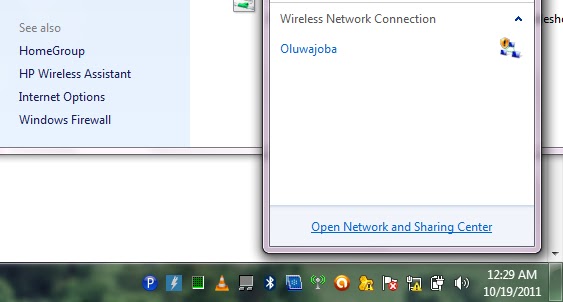
In order to do this click your network icon and then click Open Network and Sharing Center (Vista and & Users)

Browser configuration

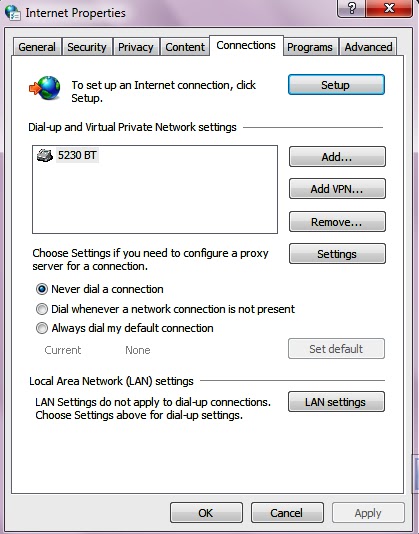
At the buttom left of the scree click internet options and then go to the connections tab

Browser configuration

You might see several connection profiles if you connect using more than one device such as MTN 3G, GLO 3G, etc.
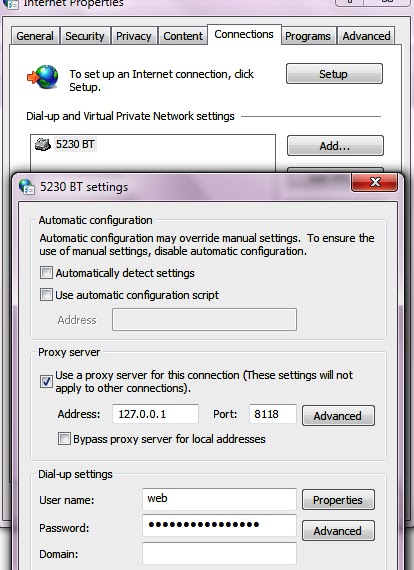
Determine the connection you are using and double click it to open its settings interface.
Next, tick "Use proxy server for this connection"
You can now enter your Proxy address (eg 127.0.0.1) and Port (eg 8080)

Browser configuration

If you have a different port number for SSL/HTTPS you should click on the advanced button (this opens another window)
You can now enter a different port number for your HTTPS/SSL in the space labeled as Secure.

Browser configuration

With this setting, you will be able to use Chrome, Safari and Internet Explorer, Maxthon, Yahoo Messanger, etc for your free browsing configurations as well as other internet enabled applications on your PC.

Note:
If you configure your Mozilla Firefox or Opera for free browsing, you need to tick/enable "No Proxy" if you are not doing free browsing or else you browser won't connect.


Browser configuration


Subscribe via RSS or Subscribe by Email.
Like TechBase on Facebook